Yollomi LogoYollomi
LoginFree Trial
Image to Image4 creditsModel guide

Seedream 5 Lite (Image-to-Image) image-to-image generator

Seedream 5 Lite (Image-to-Image) is best for reference-guided image edits and style transfer and controlled variations. This guide explains when to use it, how to prompt it, and how it differs from nearby Yollomi models. It currently starts at 4 credits on Yollomi.

Reference-guided image edits

Style transfer and controlled variations

Product, portrait, and character refinements

Keeping the source composition while changing details

Seedream 5 Lite (Image-to-Image) reference image editing example on Yollomi

Seedream 5 Lite (Image-to-Image) output examples

What you can create with Seedream 5 Lite (Image-to-Image)

Large visual examples first. Details stay below.

Visual guide
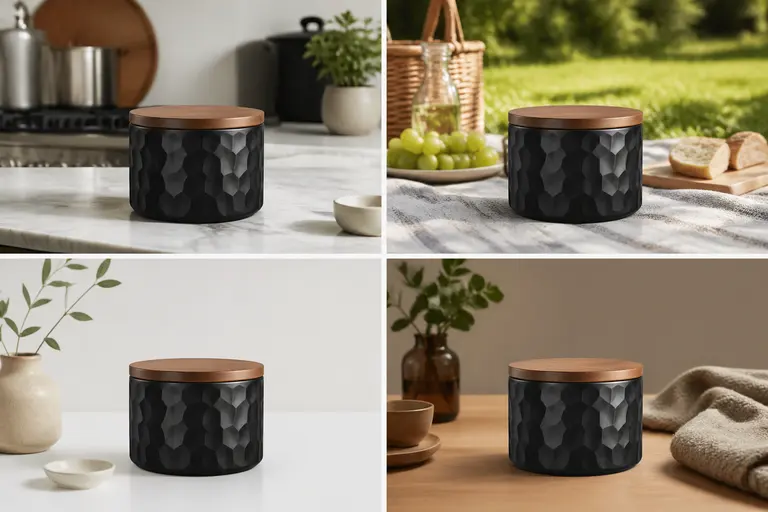
Seedream 5 Lite (Image-to-Image) Reference Image Variations example
Example output

Reference Image Variations

Create new versions of an existing image while preserving the subject, pose, product, or composition.
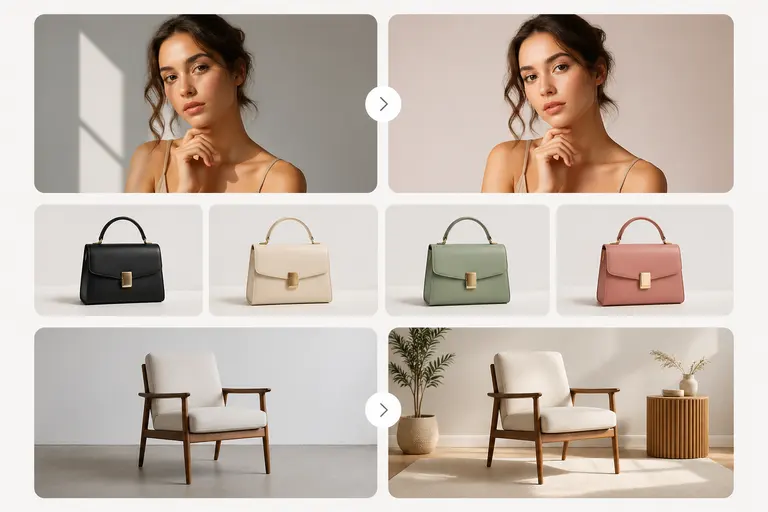
Seedream 5 Lite (Image-to-Image) Controlled Creative Edits example
02

Controlled Creative Edits

Change backgrounds, colors, styling, atmosphere, or scene details from a clear visual starting point.
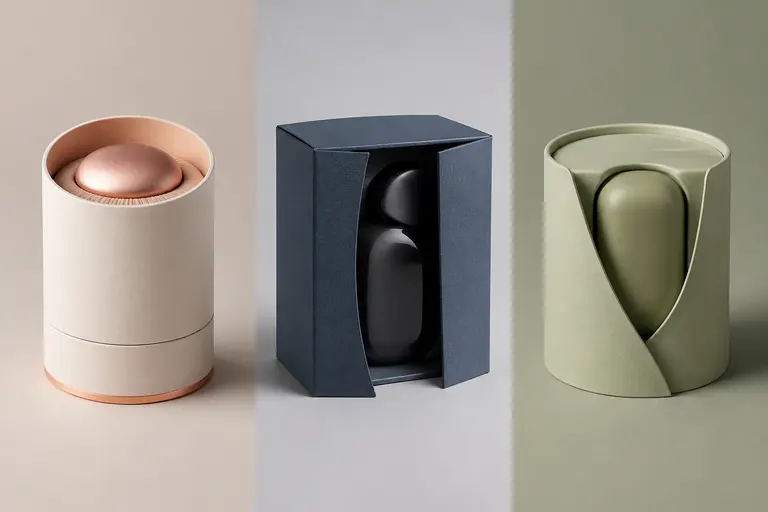
Seedream 5 Lite (Image-to-Image) Campaign Asset Refinement example
03

Campaign Asset Refinement

Turn one approved direction into multiple product, portrait, or social-ready variants.

What makes Seedream 5 Lite (Image-to-Image) different

Seedream 5 Lite (Image-to-Image) is useful when you already have a source image and want a controlled transformation rather than a completely new composition. It is better for edits, variations, style changes, and reference-guided creative workflows than a pure text-to-image prompt.

How Seedream 5 Lite (Image-to-Image) fits into a real workflow

Use Seedream 5 Lite (Image-to-Image) after choosing the source image. Describe the fixed elements first, then specify the new style, background, color, mood, or object changes so the edit stays focused.

Seedream 5 Lite (Image-to-Image) effect profile

Workflow

Image to Image

Provider

ByteDance

Look

reference-aware, polished, variation-friendly

Strength

turning an uploaded image into controlled new versions

Prompt sensitivity

works best when the prompt separates what must stay unchanged from what should change

Best output stage

controlled refinement after a base image or reference is ready

How to use Seedream 5 Lite (Image-to-Image)

Three steps. No long guide required.

Intent
Prompt
Refine
01

Pick the right intent

Reference-guided image edits

02

Start from a proven prompt

It protects the product identity while changing only the environment and lighting.

03

Compare and refine

Use GPT Image 2 for instruction-heavy edits and exact text. Use this model when the uploaded reference should drive the result.

How to prompt Seedream 5 Lite (Image-to-Image)

State what should remain unchanged before describing the edit.

Use reference-specific language such as keep the pose, preserve the product shape, or maintain the face identity.

Describe the new style, lighting, background, and output use case.

Avoid asking for unrelated changes in one pass; split major edits into separate generations.

What to watch out for

Large structural changes can drift away from the source image.

Exact text, logos, and tiny details still need manual review.

Very vague edit prompts can produce generic style transfer instead of a targeted result.

Prompt lab

Seedream 5 Lite (Image-to-Image) prompt examples

Reusable recipes, collapsed by default.

Recipe structure
Subject
Exact text
Layout
Style
Constraints
01

Product Background Swap

keep the exact product shape and angle, replace the background with a clean marble bathroom counter, soft morning light, premium skincare ad style
Full prompt + why
keep the exact product shape and angle, replace the background with a clean marble bathroom counter, soft morning light, premium skincare ad style

It protects the product identity while changing only the environment and lighting.

02

Portrait Style Edit

preserve the face identity and expression, change the outfit to a black tailored blazer, modern studio lighting, editorial LinkedIn portrait
Full prompt + why
preserve the face identity and expression, change the outfit to a black tailored blazer, modern studio lighting, editorial LinkedIn portrait

It makes the identity constraint explicit and gives a clear final use case.

03

Scene Mood Variant

keep the same composition, transform the scene into a warm cinematic sunset mood, richer shadows, golden rim light, realistic detail
Full prompt + why
keep the same composition, transform the scene into a warm cinematic sunset mood, richer shadows, golden rim light, realistic detail

It asks for mood and lighting changes without rebuilding the entire image.

Seedream 5 Lite (Image-to-Image) vs other models

Quick model choice.

GPT Image 2

Alternative

Use GPT Image 2 for instruction-heavy edits and exact text. Use this model when the uploaded reference should drive the result.

Flux Kontext Pro

Alternative

Use Flux Kontext Pro for high-quality context-aware edits. Compare with this model when visual fidelity matters most.

Text-to-image models

Alternative

Use text-to-image when you do not have a source image. Use image-to-image when preserving a reference is important.

?
?

FAQ

1

What is Seedream 5 Lite (Image-to-Image) best for?

Seedream 5 Lite (Image-to-Image) is best for reference-guided image edits, style transfer and controlled variations, product, portrait, and character refinements, keeping the source composition while changing details.

2

How should I prompt Seedream 5 Lite (Image-to-Image)?

State what should remain unchanged before describing the edit.

3

How many credits does Seedream 5 Lite (Image-to-Image) use?

Seedream 5 Lite (Image-to-Image) currently starts at 4 credits on Yollomi. Some settings may use more credits.

Seedream 5 Lite (Image-to-Image) image-to-image generator | ByteDance Model on Yollomi